Can you fake your location on iPhone? Actually, it's not easy to change iPhone location due to the strict restrictions on iOS system and the traditional method is to jailbreak your iPhone. However, Tenorshare iAnyGo is able to change iPhone location without jailbreak. Beyond that, it supports to simulate GPS movement with customized route. It supports the latest iOS 16 and iPhone 14 and allows you to control multiple iOS devices at the same time.

Part 1. How to Change GPS Location on iPhone with 1 Click
If you want to spoof location on iPhone for entertainment or security purpose, the best choice is with the help of Tenorshare iAnyGo. Follow the steps below to change iPhone location.
Step 1. Launch Tenorshare iAnygo
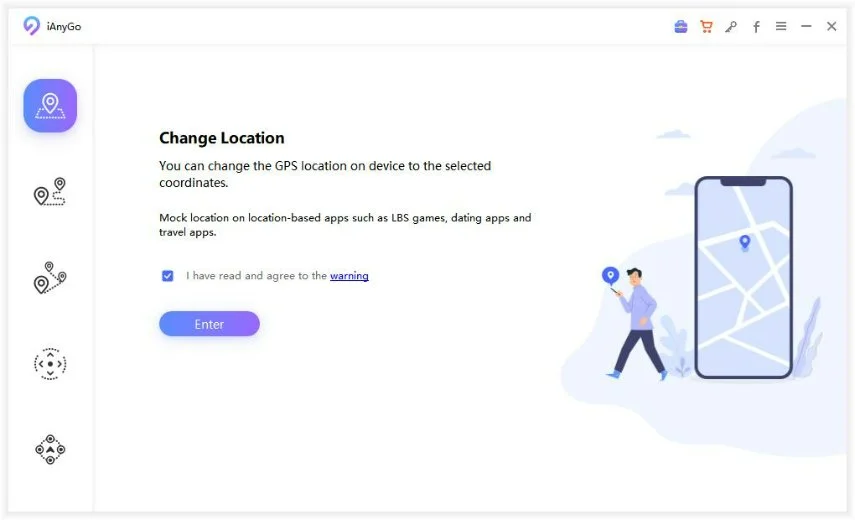
Launch the program on your computer, the default mode is ‘Change Location’.
Step 2. Connect iPhone to Computer
Method 1: Connect your iPhone to the computer via USB Cable. Then, unlock your device. Next, click the "Enter" button to get started.
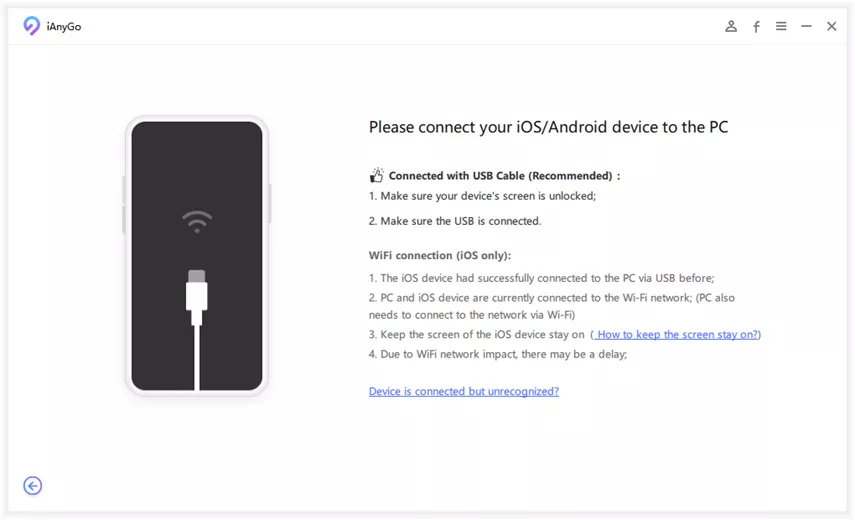
Method 2: Connect your iPhone to the computer via Wi-Fi. The following are required to use Wi-Fi connection for iOS devices.
- The iOS device had successfully connected to the PC via USB before.
- PC and iOS device are currently connected to the Wi-Fi network. (PC also needs to connect to the network via Wi-Fi)
- Keep the screen of the iOS device stay on.
(Tap "Trust" on iPhone if your iPhone pops up a message asking you to trust this computer.)
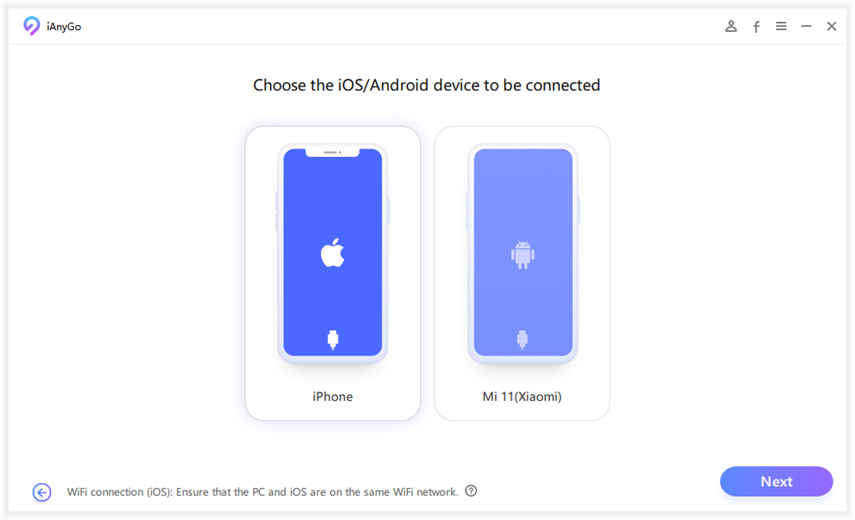
Note: iAnyGo will detect all the devices connected to PC successfully. Choose the device (up to 15 devices) you want to be used in iAnyGo and click Next button.
Step 3. Select A Location on The Map
Enter the address/GPS coordinate you want to teleport to in the search box, let's take New York City as an example, and click "Start to Modify".
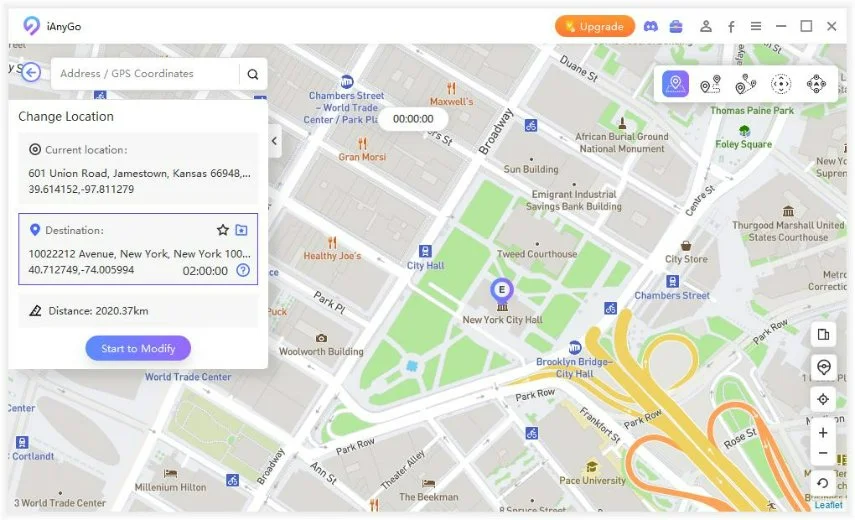
Done! Your location will be changed at once. All location-based apps on your iPhone will be changed to the fake location as well.
Note:
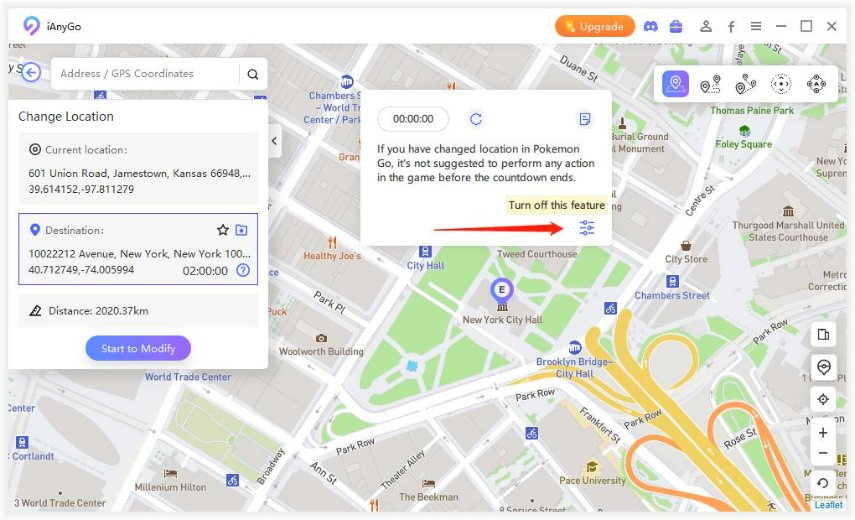
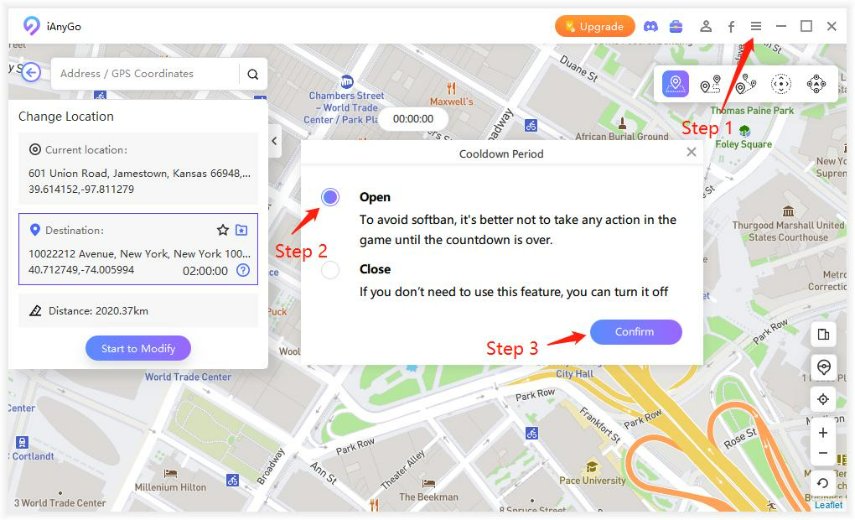
To keep the account safe, the cooldown timer is specially designed for Pokemon Go players to remind them not to change GPS location too frequently! If you don't need to use this feature, you can turn it off.
To make the cooldown timer reappear, you need to turn on the function again in Settings manually.
- If you want to view your actual location, simply click the back button on the bottom right corner.
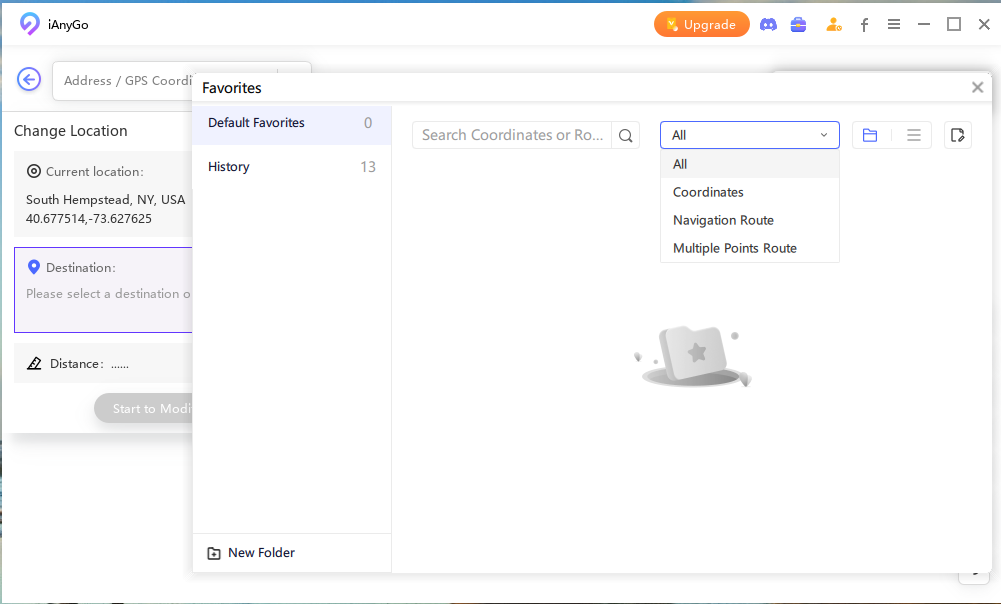
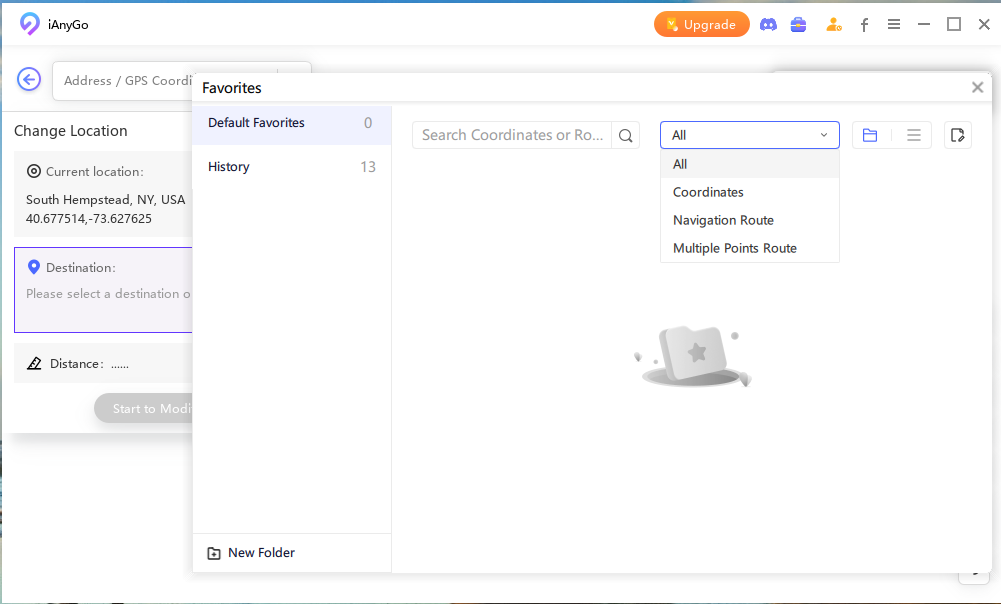
The address you have ever used will be collected in Historical Records. For your convenience, you can add the place to your favorites by clicking the Star button, which is also available in other movements.